
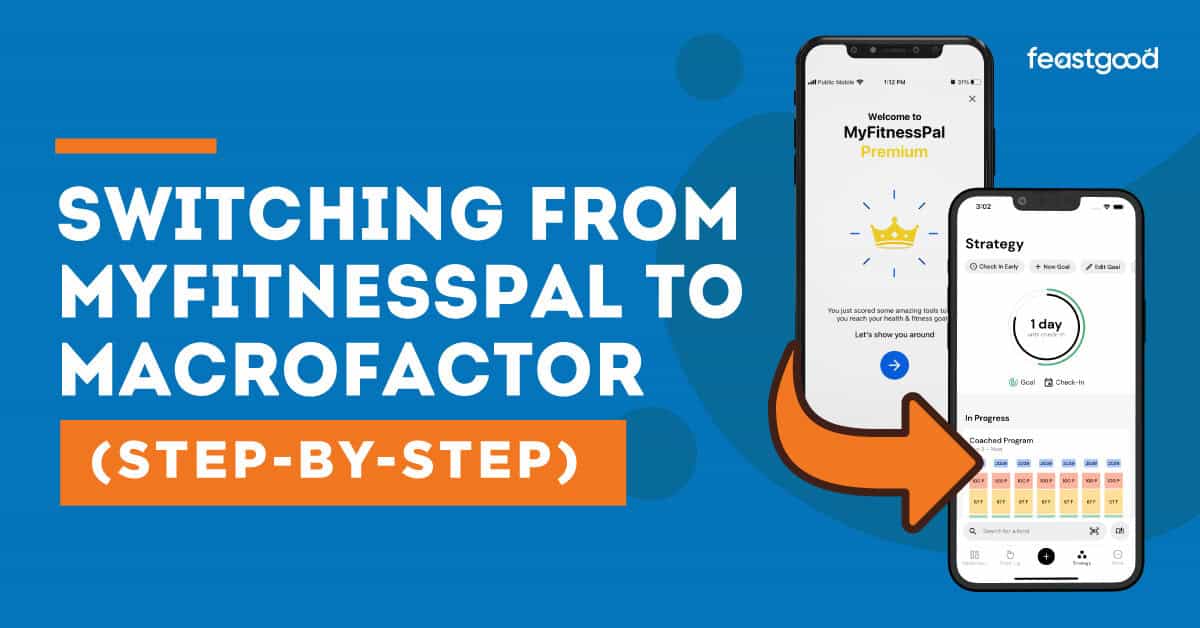
Switching food‑tracking apps can feel intimidating—especially if you’ve spent months (or years – like I did!) building custom foods, recipes, and habits inside MyFitnessPal. The good news is that moving to MacroFactor doesn’t require starting from zero or relearning everything you already know about tracking.
I’ve taken what I’ve learned along with the team here at FeastGood in our process of testing nearly two-dozen nutrition tracking apps to create this guide. It walks you through exactly how to switch from MyFitnessPal to MacroFactor, with a clear, step‑by‑step, practical approach.
By the end, you’ll know why people switch, how to set up your MacroFactor account properly, how to rebuild what matters most from MyFitnessPal, and what to focus on during your first two weeks so the app can do its job accurately.
Key Takeaways:
- Switching to MacroFactor for automatic, data-driven calorie adjustments takes away the guesswork of manually setting targets in MyFitnessPal.
- Setting up your MacroFactor account carefully first, with your goal, desired coaching style and macro preferences, matters more than logging food right away.
- Recreate only your most-used custom foods and recipes; consistency of logging is more important than rebuilding your entire MyFitnessPal database.
**You can get your first two weeks free on MacroFactor by following this link and using code FEASTGOOD.**
Why Switch from MyFitnessPal to MacroFactor?
Most of our clients (myself included) don’t leave MyFitnessPal because it “doesn’t work.” They leave because they want better feedback, fewer guesses, and less manual adjustment over time.
Here are the main reasons people decide to switch:
MacroFactor Adjusts Calories For You
With MyFitnessPal, you’re responsible for:
- Picking a calorie target (and related macronutrient targets to add up to that calorie target by selecting the percentage of total calories that comes from each macronutrient)
- Adjusting it when weight loss stalls or weight gain is too fast (or is too slow)
- Guessing whether changes are water weight or real progress
MacroFactor takes a different approach. It uses:
- Your logged food intake
- Your bodyweight trends
- Mathematical models of energy balance
From that, it automatically updates your calorie targets based on what’s actually happening, not what should be happening on paper. In other words, it doesn’t rely on rigid formulas that only work if humans eat and move like robots every single day.
This is especially helpful if:
- Your weight fluctuates a lot day to day
- You’ve struggled to know when to change calories and/or macros
- You’re tired of constantly recalculating targets yourself
This is why MacroFactor is our number one rated macro-tracking app, and we describe it as being like “having a nutrition coach in your pocket.”
Less Emphasis on “Perfect” Tracking
MyFitnessPal often feels like an all‑or‑nothing app:
- Miss a meal → data feels ruined
- Eat out without exact numbers → accuracy anxiety
MacroFactor is designed to work with imperfect but consistent data. You don’t need to be flawless, just honest and reasonably consistent. As a nutrition coach myself, this is a much more “human” approach.
Expecting our clients to be flawless with their intake is not only unreasonable, it can also be dangerous in terms of setting people up for an unhealthy all-or-nothing mentality that drives yo-yo dieting and weight fluctuations.
No Ads, Fewer Distractions
Another common reason for switching is usability:
- No ads interrupting logging
- Cleaner interface
- Less emphasis on streaks and gamification
For many users, this makes tracking feel more neutral (no sense of being “bad” or failing if a meal or entire day is missed) and less stressful. Plus, it takes away the annoyance and distraction of ads and makes tracking faster and more seamless.
Better for Long‑Term Use
MacroFactor tends to appeal to people who want:
- Sustainability over speed
- Data‑driven adjustments
- Fewer emotional decisions about food
If that sounds like you, the switch makes sense. The next section will tell you how to get going with MacroFactor.
MacroFactor Account & Preferences (Do This First)
Before logging any food, it’s important to set up your MacroFactor account correctly. This ensures the app’s recommendations are based on your preferences—not default assumptions.
One of my critiques of MyFitnessPal is that its generic assumptions lead to calorie/macro targets that are way too low for active and/or muscular people, leading to unsustainably fast rates of weight loss that tend to lead to losing muscle mass instead of body fat.
MacroFactor overcomes these challenges with both its setup and its ongoing adjustments, plus educational articles about why losing weight too fast is actually a problem (like I described above).
Here’s how to set up MacroFactor for the best success:
Step 1: Choose Your Goal
MacroFactor will ask what you’re aiming for:
- Maintain weight
- Gradual weight loss
- Gradual weight gain
Notice the emphasis on “gradual” – just like I said, gradual weight loss is more likely to be body fat vs. muscle mass, leading to better body composition, and gradual weight gain is more likely to be muscle mass and not excess body fat.
Choose the option that best reflects what you want over the next several months, not just the next week.
Tip: Conservative goals work better with MacroFactor. Extreme targets don’t improve results and can reduce accuracy.
Step 2: Select a Coaching Style
MacroFactor offers different coaching modes:
- Collaborative: The app suggests targets, but you can adjust them.
- Coached: The app makes automatic adjustments with minimal input.
If you’re coming from MyFitnessPal and are used to setting your own targets, collaborative mode usually feels more comfortable at first.
On the other hand, if you were just taking MyFitnessPal’s targets and feeling frustrated with your lack of progress, you might want to relax and let MacroFactor’s coached mode do the work for you.
Step 3: Set Macro Preferences
You can customize:
- Protein targets
- Fat minimums
- Carbohydrate balance
Unlike MyFitnessPal, MacroFactor prioritizes protein adequacy and energy balance rather than rigid macro percentages.
If you’re unsure:
- Accept the default protein recommendation
- Avoid extreme low‑fat or low‑carb setups
You can always refine this later. The good news is that MacroFactor can work with your preferences when it comes to carbohydrate or fat intake. When it comes to losing (or gaining weight), calories are king, but protein intake is close second for body composition and it’s why we recommend getting close to one gram of protein per pound of goal body weight.
Once you’ve got your protein target set, it doesn’t really matter where the rest of the calories come from (carbs or fat), especially when it comes to fat loss. You want to pick the mix that leaves you personally feeling most satisfied and sane.
Step 4: Weight Tracking Preferences
Choose:
- Units (lbs or kg)
- How often you plan to weigh in
Daily weigh‑ins are recommended, but MacroFactor uses trends, not single weigh‑ins—so normal fluctuations are expected and accounted for. This helps cut the noise and normalize the experience of seeing the scales going up and down, without thinking something is wrong.
I’ve had weight loss clients freak out about the scales going up unexpectedly. They decide their effort isn’t worth it since “it’s not working anyway” and they end up overeating (which really doesn’t help get to their goals).
On the flip side, an unexpectedly low weigh in (perhaps from not drinking enough water the day before or sweating more than usual) can also lead to overeating if clients believe they have “earned” some “wiggle room.”
The two previous examples point out why making decisions based on a single day weigh-in is not a good idea, and it’s exactly why MacroFactor uses those weekly average trends along with its science-backed algorithms to determine any adjustments needed to recommended macros and/or calories.
Once you’ve covered these four setup steps, you’re ready to move forward with logging your intake in MacroFactor.
Ready to set it up now? You can get your first two weeks free on MacroFactor by using code FEASTGOOD.
I know personally that custom foods and recipes make logging faster and more accurate, especially when you cook at home a lot (versus eating out): I’ve got literally hundreds of custom foods and recipes.
Next, I’ll share what I learned about the process of recreating custom foods and recipes in MacroFactor.
Recreate Custom Foods & Recipes
One of the biggest mental barriers to leaving MyFitnessPal is losing your custom database of foods and recipes – the switching cost can feel high if you’ve invested significant time and energy in building this up.
The key is understanding what’s worth recreating—and what isn’t.
Start With High‑Frequency Foods
You do not need to recreate everything.
Instead, begin with:
- Foods you eat multiple times per week
- Recipes for go‑to meals or snacks
- Staple recipes you rely on making every week
Examples:
- Homemade oatmeal bowls/overnight oats
- Pre- or post-workout protein shakes
- Meal‑prep lunches
- Regular family favorite dishes
How to Rebuild Recipes Efficiently
MacroFactor’s recipe builder allows you to:
- Add individual ingredients
- Set total cooked weight or servings
- Log by portion size
When rebuilding:
- Use raw/uncooked weights when possible
- Keep ingredient lists simple: you do not need to add every single dash of spice in a flavorful dish (especially if you’re the type to grab what is on hand in the spice rack)
- Avoid over‑engineering recipes
Accuracy improves with consistency, not complexity.
When Not to Create a Custom Food or Recipe
Skip custom food/recipe creation if:
- You only eat the food or meal occasionally
- The ingredients vary each time
- The food is already available in the database
Logging individual components of a meal is often faster and just as effective as creating a recipe.
Let Go of Old Data Guilt
It’s normal to feel attached to years of saved foods. But remember:
- Old entries don’t improve future accuracy
- MacroFactor learns from current data
- A smaller, cleaner database is easier to maintain
Once you’re set up with the actual foods and recipes you eat most commonly (plus you can add them as you go; no need to spend a bunch of time up front trying to record everything), you can start logging your intake in MacroFactor.
Food Logging Barcode & Database Tips
Verified vs. Community Entries
MacroFactor places more emphasis on:
- Verified nutrition labels
- Reduced duplicates
- Fewer wildly inaccurate entries (MyFitnessPal is notorious for completely inaccurate entries, or entries for the same food that have wildly different calorie counts and/or macros, or even macros that don’t line up with the calories)
If a barcode scan doesn’t return a result:
- Try searching the food name manually
- Enter the nutrition label yourself
This may feel slower at first, but it improves reliability over time.
Create Custom Foods the Smart Way
When adding a custom food:
- Use the nutrition label, not estimates
- Double‑check serving size units (you’d be surprised how often clients find out that a small package they thought was a single serving was actually 2-3 servings)
- Save it only if you’ll reuse it (this helps keep your database size manageable)
Avoid creating custom foods for one‑off items.
Logging Restaurant Foods
For restaurants:
- Use official nutrition data when available (this is most common at chain restaurants)
- If not, choose a comparable generic item
- Try the AI photo logger
MacroFactor doesn’t require perfect matches—reasonable estimates are sufficient.
Common Barcode Mistakes to Avoid
- Logging cooked foods with raw nutrition data (or vice versa)
- Mixing grams and servings inconsistently
- Trusting community entries without verification
Taking an extra 30 seconds here improves long‑term accuracy.
First 14 Days: What to Track (and What to Ignore)
The first two weeks in MacroFactor are about data collection, not optimization.
Priority #1: Log Food Consistently
During the first 14 days:
- Log as many meals/days as you reasonably can
- Be honest, not perfect
- Don’t try to “game” the numbers
Skipping days reduces the app’s ability to estimate energy needs accurately.
Priority #2: Weigh In Regularly
Daily weigh‑ins are ideal, but:
- Same time each day is more important than exact conditions
- Normal fluctuations are expected
MacroFactor smooths these automatically with weight trends.
What Not to Obsess Over
Avoid over‑focusing on:
- Day‑to‑day calorie changes
- Short‑term weight spikes (or drops)
- Hitting macros perfectly
The app needs time to detect trends.
Don’t Adjust Calories Manually Yet
For the first two weeks:
- Follow the targets provided
- Avoid pre‑emptive changes
Let MacroFactor establish a baseline before intervening.
Review After Day 14
After two weeks, you should:
- See clearer calorie targets
- Understand how your intake affects weight trends
- Feel more confident logging foods
This is when MacroFactor’s strengths really begin to show.
Final Thoughts
Switching from MyFitnessPal to MacroFactor isn’t about tracking harder—it’s about tracking smarter.
If you:
- Set up your account thoughtfully
- Rebuild only the foods that matter
- Log consistently during the first 14 days
You’ll likely find that MacroFactor requires less mental effort over time while providing clearer guidance.
The transition may feel unfamiliar at first, but once the system has enough data, most users find it easier to maintain—and easier to trust—than traditional nutrition tracking apps.
About The Author

Lauren Graham is a Precision Nutrition Level 1 certified nutrition coach. She focuses on helping busy professionals balance healthy eating and purposeful movement. Lauren has a background in competitive swimming and is currently competing as a CrossFit athlete. She has a passion for training, teaching, and writing.
Why Trust Our Content

On Staff at FeastGood.com, we have Registered Dietitians, coaches with PhDs in Human Nutrition, and internationally ranked athletes who contribute to our editorial process. This includes research, writing, editing, fact-checking, and product testing/reviews. At a bare minimum, all authors must be certified nutrition coaches by either the National Academy of Sports Medicine, International Sport Sciences Association, or Precision Nutrition. Learn more about our team here.
Have a Question?
If you have any questions or feedback about what you’ve read, you can reach out to us at info@feastgood.com. We respond to every email within 1 business day.
